
OSLC utilizes embedded content (iframes) extensively. This creates an embedded feel, as one application shows content resident in another tool. When these tools are resident on different domains (mycompany.com and mycompany.cloud for example), the session cookies must be shared in a 3rd Party context.
As we shared in Embedded Content or Authentication Isn't Working between OSLC Applications, setting SameSite=None is critical to enable cookies to be used in this 3rd-party context.
We've noted that both browsers and enterprise configurations add another layer of configuration that can cause issues.
If, after checking, your applications are setting the SameSite=None setting and you are still observing this issue, you should check local configurations.
Most browsers have a privacy/security section with configurations on 3rd Party Cookies. These must be set to allow 3rd Party cookies for your OSLC domains (at a minimum). Each browser is a little different (and they change), so we have provided hints for Chrome and Firefox below.
Chrome
For example, Chrome provides the following configuration.
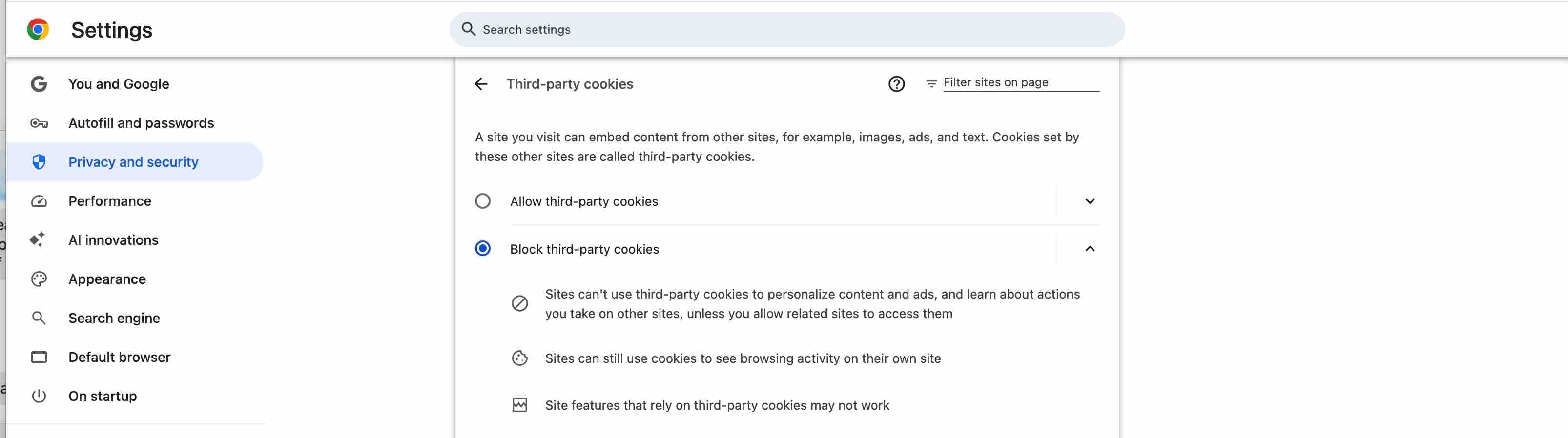
In Enterprises, it is observed that there can be a global configuration to disable 3rd Party Cookies. Fortunately, there is also the ability to configure specific domains be in the “allow list” for usage of 3rd Party Cookies.
Make sure the following section is updated with the domains of your OSLC Tools.

Also note that “Incognito Mode” will always disable the usage of 3rd Party cookies, and it should not be used for multidomain OSLC connections.
Firefox
You will find similar settings in Firefox.
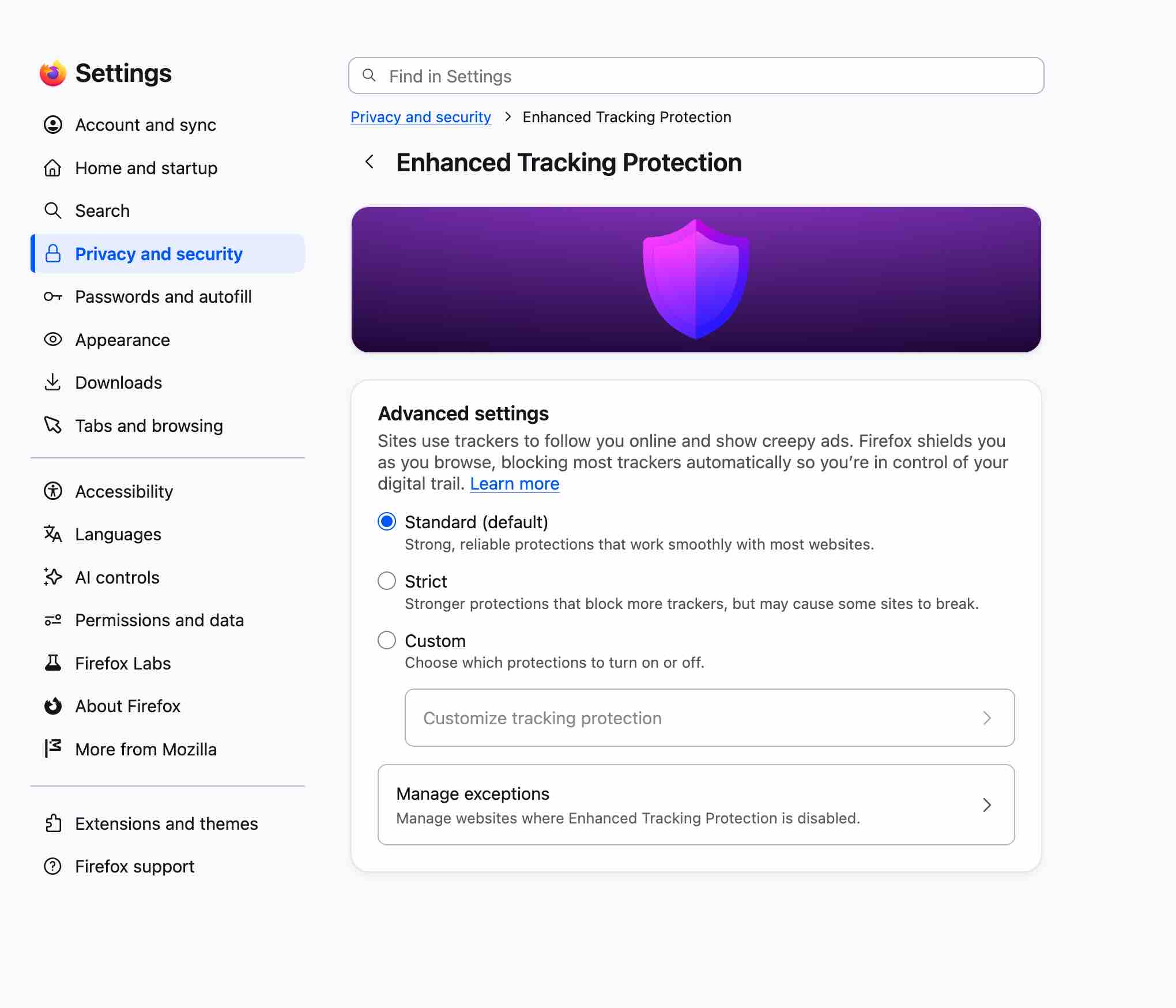
Currently, Standard (default) should not cause issues. However, escalating the setting to prevent cross-site cookies will cause issues.
For example, the following settings ->
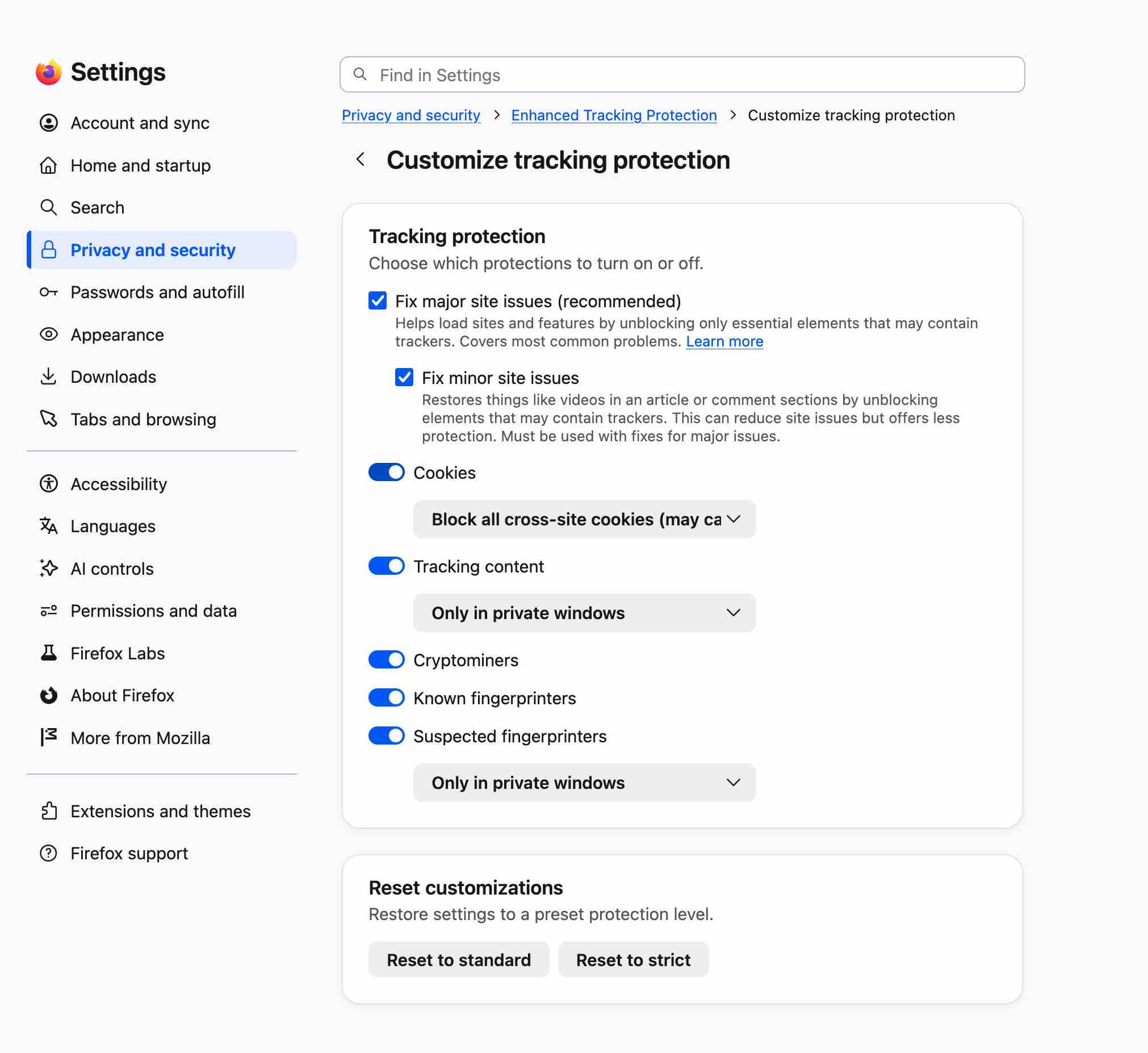
Users will see blocked content.
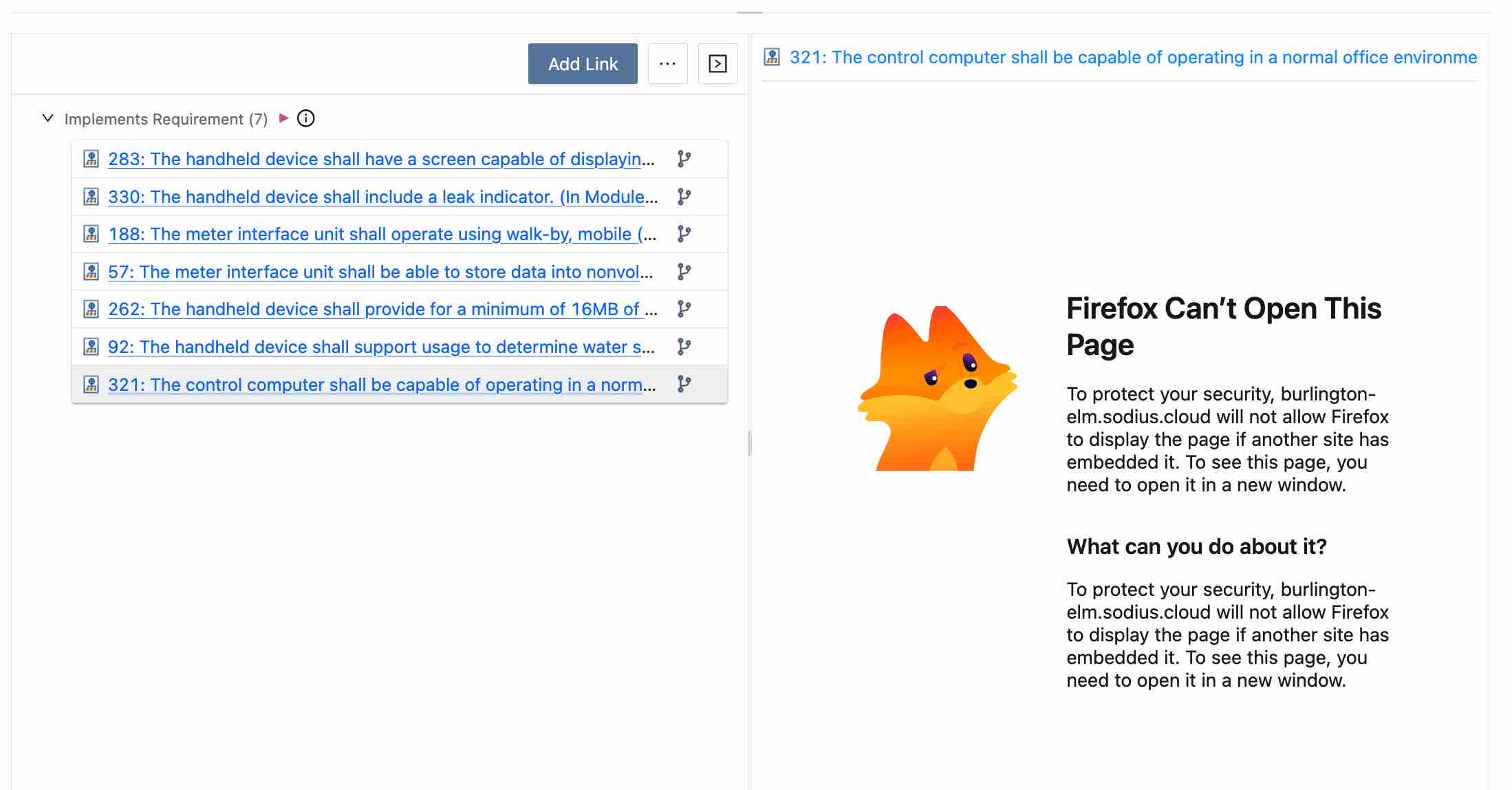
To be clear, these are not application issues, but rather enterprise- or user-specific browser configuration issues to be addressed. Alternatively, putting all OSLC tools in the same domain will also address these issues without Browser configuration issues.
Diagnosing these issues
In most situations, opening up the Web Developer Tools and viewing the Console will provide hints of blocked 3rd party cookies. Also, engage the Sodius support team if you believe this is your situation so we can collaborate to isolate the specific issue and recommend a solution. Note: The solution will most often involve engaging your IT team to address it more broadly for team members.